KidBox widgets: the family's day on your Home Screen

The family agent that thinks ahead for you.
It spots what's left uncovered and asks who will handle it. For iPhone, Android and the browser, end-to-end encrypted. Free for the whole family, with no member limit.
Most of the time you open a family app you want to know one thing: what's on today, what's left to buy, whether the evening dose has been given. That's why KidBox has widgets for the iPhone and iPad Home Screen: the answer is there when you unlock your phone, and for the small things you don't even need to open the app.
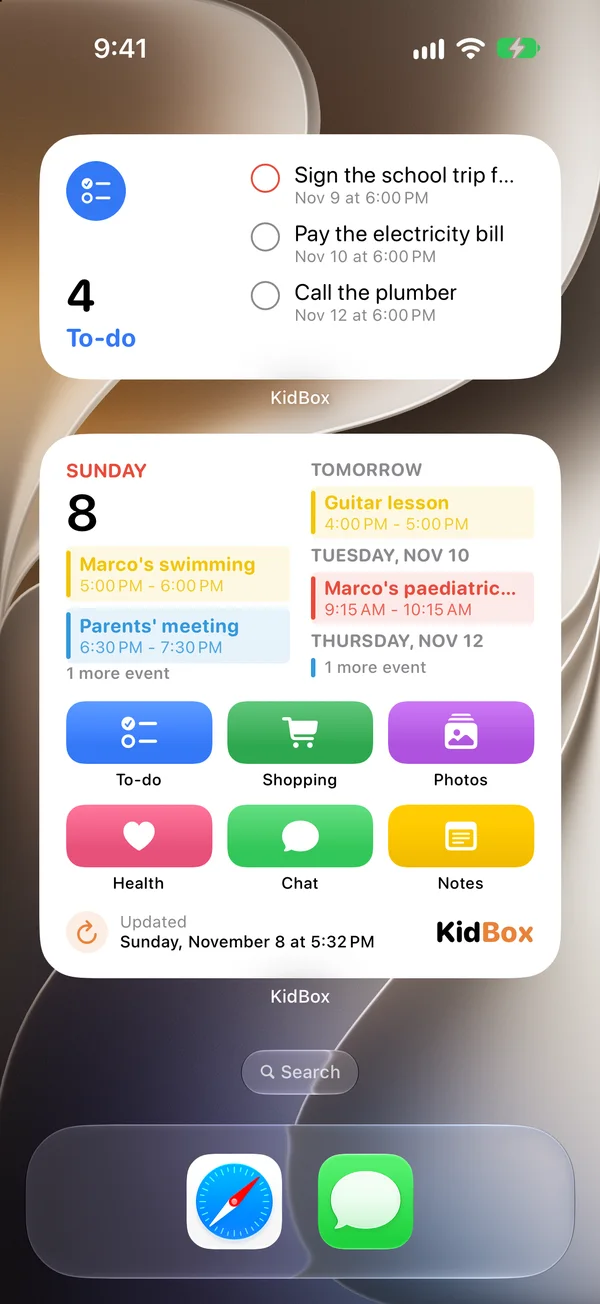
What a widget can show
Each widget shows one section, and you choose it by holding the widget and tapping "Edit Widget":
- Calendar: today's plans and the next few days, in the events' colours
- To-do: things to do, from a specific list if you like; the ones due soon come first
- Groceries: what's still to buy
- Treatments: today's doses for one person in the family
- Photos: a family album
- Fitness plan: the workouts of the person you choose
You can place several widgets side by side, even of the same section: say, the calendar and the grocery list below it.
Three sizes
- Small: the number and the first thing to know, for instance how many to-dos are left
- Medium: the first items in full, readable at a glance
- Large: the section with more room and, below it, up to six shortcuts to the sections you pick (to-dos, groceries, photos, health, chat, notes…). At the bottom you see when it was last updated, with a button to refresh right away
Tick things off from the widget
Widgets aren't just for looking. One tap on the circle next to an item and:
- a to-do is done
- a grocery item is bought
- a treatment dose is given
The change reaches the whole family as if you'd made it in the app. At the supermarket, trolley in one hand, it's the quickest way to keep the grocery list up to date.
How to add one
- Hold an empty spot on the Home Screen, tap Edit, then Add Widget
- Search for KidBox and pick the size
- Hold the new widget, tap Edit Widget and choose the section (and, where needed, the list, the person or the album)
What others see
The widget shows what you see in the app, nothing more. Private things stay private, and the family's encrypted content stays on the device. The widget updates on its own when you open the app or when someone changes something; the button at the bottom of the large one is for when you want to be sure you have the latest version.
A tip
Put the calendar widget on the first page of both parents' phones. Nobody has to remember to open the app: unlocking the phone is enough to see that the paediatrician is on Thursday, and who's taking them. It's the same principle as reminders that work: the information lands where you already look.
Widgets are included in every plan, on iPhone and iPad. If you also work from a Mac, read how to pick up where you left off with Handoff.
The tools this article talks about
Read next
Handoff in KidBox: start on iPhone, finish on Mac
The to-do, event or doctor's visit you're writing moves from iPhone to iPad or Mac already filled in, right where you were. How it works and what it carries.
The shared grocery list: how to make it actually work in a family
Why a list on paper or in notes fails with two people, and the four rules for a family list that empties at the supermarket and fills itself at home.
Reminders that work: why most get ignored and how to set them
A reminder at the wrong moment is noise. The rules for family notifications that arrive when you can act — and reach the right person.